How to Use Google Ads Editor: A Complete 2026 Guide (Download, Bulk Edit, Upload & Post)

Rohit Nandan
Founder & Lead Digital Marketing Consultant
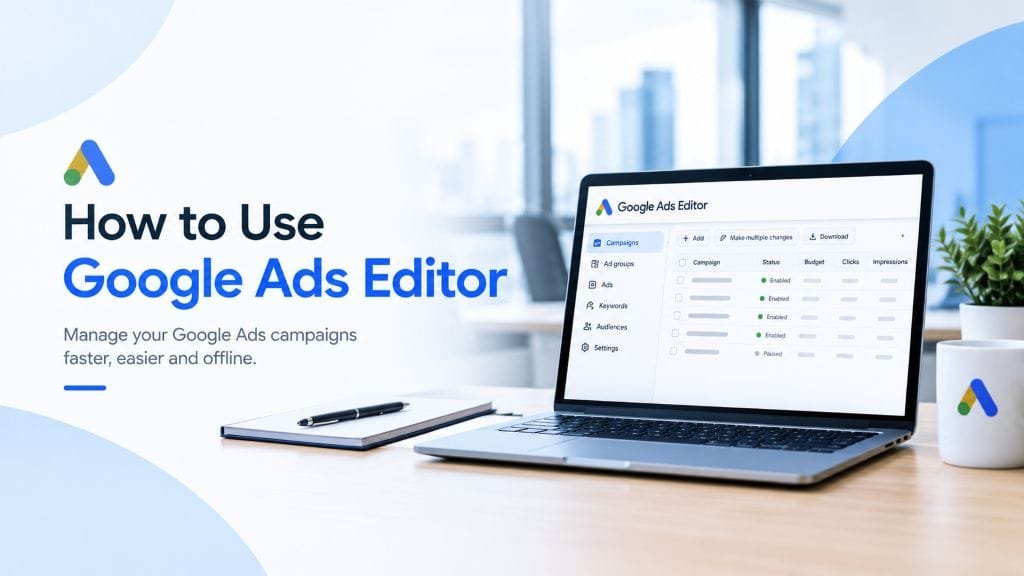
Quick answer: Google Ads Editor is Google’s free desktop app for managing Google Ads accounts in bulk. You download a copy of your account, make hundreds of changes locally (edit bids, swap headlines, add negative keywords, even build whole campaigns from a spreadsheet), review everything as pending changes, then post it live in one go. Use it when a job touches many rows at once. Stay in the web interface for performance analysis, one-off fixes, and anything Google launched very recently. In 2026, one habit matters more than any feature: click “Get recent changes” before every editing session, because Google now changes some campaigns on its own.
Most Google Ads accounts start small. A few campaigns, a few dozen keywords, everything editable from the browser. Then the account grows: a campaign per city across Delhi NCR, separate ad groups per service, a festive offer that has to change in sixty ads at once. At that point, clicking through the web interface one row at a time stops being sensible, and Google Ads Editor starts paying for itself.
This guide covers what Editor actually does, how to set it up, a safe workflow for making and posting changes, and what has shifted in 2026 that most older tutorials never mention.
What Google Ads Editor Is (and Isn’t) {#what-is-it}
Google Ads Editor is a free app for Windows and Mac, built by Google. You download it from Google’s official Editor page, sign in, and pull a copy of your account onto your computer. Everything you change happens on that local copy until you choose to post it.
The panel on the left mirrors how your account is organised. Campaigns sit under the account, ad groups sit under campaigns, and keywords and ads sit inside ad groups. Settings such as budget, bidding, locations and languages live at campaign level, so a change there affects everything beneath it. That’s why structure matters when you edit in bulk: one wrong cell at campaign level can ripple through dozens of ad groups.
Three things Editor is not:
- Not a reporting tool. You can view some stats, but analysis belongs in the web interface.
- Not a separate account. It edits the same account you see in your browser. There is no second set of campaigns.
- Not live. Nothing reaches your real campaigns until you post. You can rebuild a campaign, change your mind, and discard it without a single ad being affected.
Google Ads Editor vs the Web Interface {#vs-web}
| What you’re doing | Google Ads Editor | Google Ads web interface |
|---|---|---|
| Changing many rows at once | Built for it: multi-select, paste, find and replace | Possible, but slower at volume |
| Safety net | Edits sit as pending changes until you check and post | Most edits go live when you save |
| Data freshness | A snapshot from your last download | Always current |
| Working without internet | Yes | No |
| Reports and analysis | Basic | Full reports, segments, search terms |
| Brand-new Google features | Often arrive later | Usually first |
| Several people editing the same account | Risky: each person has a local copy | Everyone sees the live account |
The short version: Editor is for volume and structure, the browser is for insight and urgency.
What Google Ads Editor Is Best For {#use-cases}
These are the jobs where it clearly beats the browser:
- Cloning campaigns for new locations. Build one strong campaign, copy it, and change the targeting for Noida, Gurugram or Ghaziabad instead of rebuilding from scratch.
- Updating offers across many ads. A festive sale ends and sixty headlines need to change. Find and replace does it in one pass.
- Adding negative keywords in bulk. Paste a list pulled from your search terms report across several campaigns at once.
- Pausing or enabling groups of items. Seasonal campaigns, out-of-stock products, ad groups that stopped earning their place.
- Changing final URLs and tracking parameters. Useful after a site migration or a UTM change.
- Taking a backup before a restructure. Export your account before you start moving things around.
- Managing several accounts. If you handle more than one client or brand, one tool can hold them all.
If you’re still deciding whether to run Google Ads at all, our guide to local SEO vs Google Ads helps you choose where to start, and our Google Ads for beginners guide covers setting up your first campaign in the browser before Editor becomes useful.
How to Download, Install and Open Your Account {#setup}
- Download Editor from Google’s official page (ads.google.com/home/tools/ads-editor), choosing the Windows or Mac version. Avoid third-party download sites.
- Install it like any desktop application.
- Sign in with the Google account that has access to your Google Ads account. A browser window handles the login, then returns you to the app.
- Add your account. Signing in through a manager account shows every account under it.
- Choose what to download. All campaigns, or only the ones you plan to touch. For a large account, downloading just the relevant campaigns keeps Editor fast.
Your currency (usually INR) and time zone (usually IST) come from the Google Ads account itself, not from Editor. If bids or budgets look strange, confirm you’ve opened the right account before suspecting anything else.
Why 2026 Changes the Rules: Your Local Copy Can Go Stale Faster Than Before {#2026}
This is the part most Editor tutorials, including ones that rank well today, skip entirely.
Older guides treat your Google Ads account as something that only changes when you or a colleague change it. That’s no longer fully true. Google has been moving campaigns onto its AI-driven setups automatically. Google announced that eligible Search campaigns using campaign-level broad match or automatically created assets would be upgraded to AI Max for Search from September 2026, with Dynamic Search Ads following in February 2027. Whenever a platform change like this lands, the live account can differ from the copy sitting on your computer, even if nobody on your team touched it.
What to do about it:
- Always click “Get recent changes” first. Treat it as step one of every session, not an optional extra.
- Check campaign settings in the web interface after an upgrade wave. Confirm what changed before bulk-editing anything built on the old settings.
- Don’t bulk-edit automated campaigns as if they were manual ones. Performance Max and AI Max campaigns depend on asset groups, signals and text guidelines rather than tight keyword control. Our guide on reducing Google Ads CPC explains how quality signals work differently in Performance Max.
- Read the release notes when something seems missing. Editor gains support for newer campaign types and settings version by version, so a feature you can see in the browser may not exist in your installed version yet. Google’s Editor help centre lists what each version supports.
How to Make and Post Changes, Step by Step {#workflow}
- Get recent changes so you’re editing the live state of the account.
- Choose your scope. Use the account tree to pick the account, campaign or ad group, then pick the item type you want to see (keywords, ads, assets, and so on).
- Select multiple rows with Shift-click or Ctrl-click (Cmd-click on Mac), then change a field in the edit panel. The change applies to every selected row. You can also paste values straight from a spreadsheet.
- Watch the pending-change markers. Editor marks new, edited and deleted items. That’s your running list of what’s about to go live.
- Run Check changes. Editor tests your edits against Google Ads rules and flags errors (which block posting) and warnings (which don’t, but deserve a look).
- Fix errors and re-run the check until it comes back clean.
- Post only the campaigns you meant to change. Posting selected campaigns keeps any half-finished experiment elsewhere in the account from slipping out by accident.
- Verify in the web interface. Open a few edited items online and confirm they look right.
Worked Example: A Festive Offer Ends, 60 Ads Need Updating
Say your ads say “Festive Offer: 20% Off” and the offer ends tonight. In the web interface this means opening ads one by one. In Editor:
- Get recent changes.
- Select the relevant campaigns and open the ads view for responsive search ads.
- Use find and replace to swap the offer headline for your evergreen one, limited to headlines.
- Switch to ad groups and pause the ones built only around the festive promotion.
- Run Check changes, fix anything flagged for length, then post the selected campaigns.
- An hour later, confirm in the web interface that the edited ads cleared Google’s policy review.
Edited ads go through review again after posting, so expect a short delay before the new text serves.
How to Bulk Upload a Campaign from a Spreadsheet {#bulk-upload}
Planning a new campaign in a spreadsheet first beats building it row by row inside Editor. You can see the whole structure at a glance, share it for review, and catch typos before anything touches your account.
Step 1: Copy Editor’s own headers. Export a small sample from your account and mirror its exact column names. Editor reads headers literally, so this removes most import errors before they happen.
Step 2: Build the sheet. Each row is one keyword tied to its ad group and campaign:
| Campaign | Ad group | Keyword | Match type |
|---|---|---|---|
| Services – Noida | AC Repair | ac repair noida | Exact |
| Services – Noida | AC Repair | ac service near me | Phrase |
| Services – Noida | Deep Cleaning | home deep cleaning noida | Exact |
| Services – Noida | Deep Cleaning | deep cleaning service price | Phrase |
Spell campaign and ad group names identically on every row. A stray space or extra letter silently creates a second ad group you never intended.
Step 3: Save as UTF-8 if you use Hindi or other Indian-language text. The wrong encoding can turn ad copy into unreadable characters on import.
Step 4: Paste or import into Editor. It shows a preview of what it will create before adding anything as a pending change.
Step 5: Set the campaign settings. Imported campaigns start with defaults, and defaults are rarely right. Set budget, bid strategy, networks, locations and languages. Pick locations through Editor’s location search rather than typing names from memory, so they match Google’s own location names. A campaign meant for Noida that’s still targeting all of India will spend very differently.
Step 6: Check, post, and enable carefully. Run Check changes, post the new campaign paused, review it once in the web interface, and only then enable it.
Pre-Post Safety Checklist {#checklist}
| Before you post | Why it matters |
|---|---|
| Exported a backup of the account | Gives you something to restore from |
| Clicked Get recent changes at the start | Avoids overwriting live changes |
| Pending-change counts match what you expect | Catches accidental edits |
| All errors cleared, warnings read | Errors block posting, warnings still hurt |
| Locations and languages confirmed | The most common expensive mistake |
| Budget and bid strategy reviewed | Defaults after import are rarely right |
| Final URLs and tracking templates correct | Broken tracking wastes spend invisibly |
| Posting selected campaigns only | Keeps unfinished work local |
On that tracking row: bulk-editing final URLs is risky if your measurement is already shaky. If conversions in Google Ads look lower than real sales, our guide on server-side tracking for Google Ads and GA4 explains why, and why it’s worth fixing before you scale changes across a whole account.
Common Mistakes and How to Avoid Them {#mistakes}
- Editing a stale copy. A copy downloaded last week can overwrite a colleague’s changes from yesterday. Get recent changes every time.
- Two people editing the same campaigns. Editor flags conflicts when you fetch changes, but you still have to decide whose version wins. Agree who owns which campaigns, and keep sessions short.
- Forgetting unposted changes. Pending edits sit quietly on your computer. Before closing, check the pending counts and either post or revert them.
- Treating Check changes as policy approval. It catches technical problems, not policy ones. Ads still go through Google’s review after posting and can be disapproved.
- Running an outdated version. Old versions miss newer settings and eventually stop being supported. Accept update prompts.
- Bulk-editing before fixing the structure. If campaigns are messy, bulk changes make the mess bigger. If conversions aren’t happening in the first place, start with why your PPC campaign isn’t converting.
When to Stay in the Web Interface, and When to Go Beyond Editor {#web-or-more}
Open the browser instead of Editor when you need to:
- Analyse performance. Segments, charts and search terms reports are far better online.
- Work through experiments or Google’s recommendations.
- Collaborate in real time with several people on the same account.
- Use a feature Google launched this week. It usually appears in the browser first.
If you find yourself repeating the same bulk task every week, such as pausing keywords that hit a cost threshold, that’s a sign to look at Google Ads scripts or the API for automation rather than manual Editor sessions.
A simple rule: if the question is “how is this performing?”, use the web interface. If it’s “how do I change all of these at once?”, use Editor, get recent changes first, and post only what you meant to touch.
Final Thoughts
Google Ads Editor won’t make a weak campaign strong, but it makes managing a growing account much faster and much safer, as long as you respect the one thing that has changed in 2026: your local copy is only as current as your last sync. Build the habit of syncing first, checking before you post, and verifying afterwards, and Editor stops being intimidating and starts being the quickest way to run a large account cleanly.
Want a clean account structure and a proper QA process before you start bulk editing? ZestRank offers Google Ads management services in Delhi for businesses across Delhi NCR, including account audits, campaign restructures and conversion tracking fixes. If you’re comparing channels, see Google Ads vs Facebook Ads; if you’re running an online store, our Ecommerce CRO Checklist covers the landing page side. Evaluating agencies? Read our questions to ask before hiring a digital marketing agency and our digital marketing services. Book a free PPC strategy session and we’ll review your account structure with you.
Frequently Asked Questions {#faqs}
Is Google Ads Editor free?
Yes. It’s a free desktop app from Google for Windows and Mac. You only pay for the ad spend in the Google Ads account you manage with it.
Can I use Google Ads Editor offline?
Yes. Once your account data is downloaded, you can edit without a connection. You need to be online to download recent changes and to post.
Does Google Ads Editor replace the Google Ads web interface?
No. It’s a companion for bulk and structural work. Reporting, experiments, recommendations and the newest features live in the web interface.
Can I undo changes after I post them?
Once posted, changes are live. You can reverse them by editing back to the earlier values, and the web interface’s change history shows what changed and when. That’s why exporting a backup and checking before you post both matter.
Can I create a whole campaign from a spreadsheet?
Yes. Build the structure in a sheet (campaign, ad group, keyword, match type), paste or import it into Editor, set the campaign-level settings, check, and post. Mirror the column headers from an exported sample to avoid import errors.
Does Google Ads Editor support Performance Max and AI Max?
Support for newer campaign types and settings arrives version by version. Check Google’s Editor help centre and release notes to see what your installed version supports, and avoid bulk-editing automated campaigns as if they were manual ones.
Do edits made in Editor need Google’s approval?
Technical errors are caught by Check changes before you post, but ads are still reviewed under Google’s advertising policies after posting and can be disapproved.
About the Author: Rohit Nandan
Founder & Lead Digital Marketing ConsultantRohit Nandan is ZestRank's Founder & Lead Digital Marketing Consultant and YouTube SEO Expert, with over 15 years of experience diagnosing and running search campaigns for businesses across Delhi NCR. He personally reviews ZestRank's client projects, with deep expertise in technical SEO infrastructure and YouTube optimization. Have a question about this post? Message Rohit directly on WhatsApp.
Free Consultation
Ready to see how these exact parameters can be configured to expand your physical business discovery indices?
Request Strategy Call WhatsApp Strategist